
ChatGPT / OpenAI Ads
Here's how to make your sales from ChatGPT ads measurable. This will take you around fifteen minutes and requires
access to the OpenAI Ads Manager at ads.openai.com.
Most of it is already done
Your shop is already prepared for ChatGPT Ads via Shoplytics. We activate tracking with a single click, with no changes
to your shop and no coding required on your end. We automatically deliver these events:
- Page view - someone lands in your shop from an ad
- Product view - an item is viewed
- Added to cart
- Checkout started
- Purchase - including order value and purchased items
We send each of these via two channels: from the browser through the pixel, and additionally from our server. OpenAI
recommends exactly this combination, because sales sent server-side still arrive even when an ad blocker is active
or cookies are missing. Both channels carry the same event ID, so nothing is counted twice. The bottom line
is you see more of your actual sales.
There are two things we can't handle for you, because they're only possible within the ad account itself:
The two steps at a glance
Step 1: You retrieve two values from your ad account and send them to us. That's how we set up the data pipeline. You
do this part once, and we take care of the rest.
Step 2: You decide in the ad account which actions should count as conversions. Only the
account owner can do this, so this part stays with you.
Step 1: Find the Pixel ID and Conversions API Key
You'll find both values in the same place. Send us both, and we'll set them up in Shoplytics.
Value 1 of 2: The Pixel ID
The identifier of the data container where your sales are collected. Not a secret, so it may be shared openly.
1. Log in to your ad account at ads.openai.com.
2. Open the Tools menu and select Conversions.
3. Stay on the Data Source tab. This is where your created pixels are listed.
4. The ID appears directly below the pixel's name. Hover over the row and copy the Pixel ID.
5. If no pixel exists yet, create one first and name it after your shop.
The value looks roughly like this: a longer sequence of letters and digits, for example 2Fpr6SG4h87eMXrACYkfK9.
Value 2 of 2: The Conversions API Key
Allows our server to report orders directly to OpenAI. This key is like a password and should be treated accordingly.
1. Stay in the same area under Tools, then Conversions.
2. Click the key icon in the top right, which manages the Conversion API keys.
3. Create a new key there.
4. Give it a recognizable name, for example Shoplytics.
5. Copy the key immediately. It is shown only once and cannot be retrieved afterward.
The value looks roughly like this: it starts with sk-svcacct- and is considerably longer than the Pixel ID.
If you can't find the Conversions section
Then your ad account hasn't been enabled for it yet. Neither you nor we can activate this ourselves — please contact
your OpenAI representative. If you didn't copy the key in time, delete the old entry and create
a new one.
Step 2: Create conversion actions in ChatGPT
If you already run Meta ads, you're used to this: tracking sends a standard event, and it
automatically appears in reporting. That's not how it works with ChatGPT Ads. Here it's like Microsoft Ads (Bing): the event
we send is initially just the data pipeline. Which of these actions counts as a conversion is something you
define separately in the ad account.
So we reliably send the purchase, but it only gets counted once you tell ChatGPT that you want to
count it as a conversion. Only then does it appear in reports and become selectable as a campaign goal.
Here's where to find this section: on the left menu under Tools, the Conversions item, then the Conversion Events tab at the top, and within it the button to create one.
How to proceed
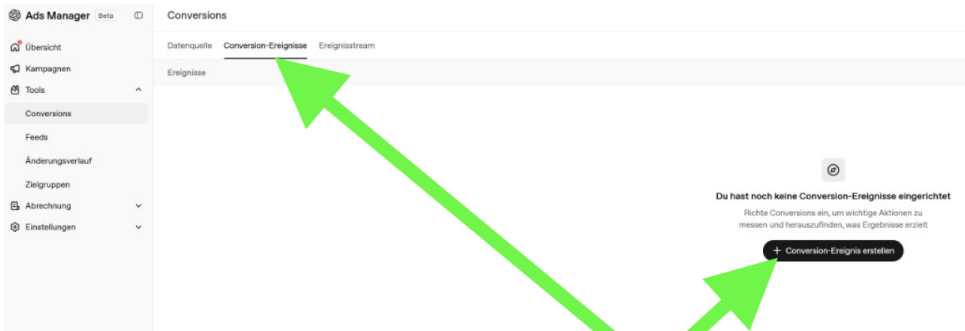
1. In the Ads Manager, open Tools on the left menu and select Conversions.
2. Switch to the Conversion Events tab at the top.
3. Click + Create Conversion Event. If one already exists, you'll find the button in the top right under + Create.
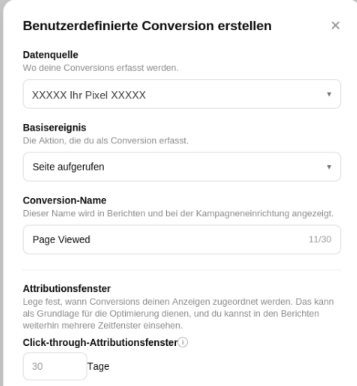
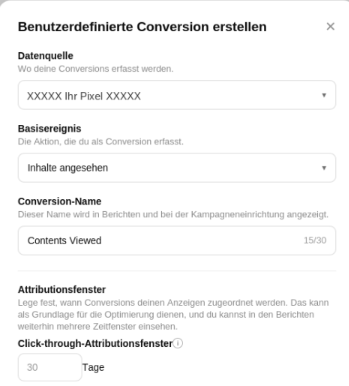
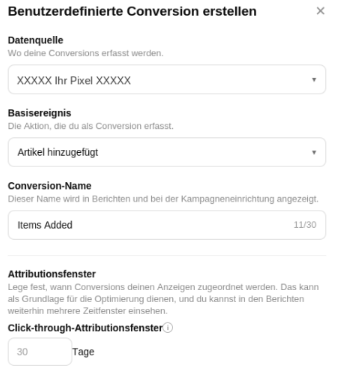
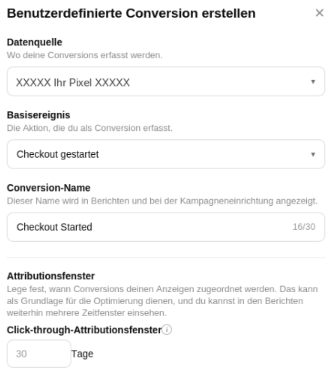
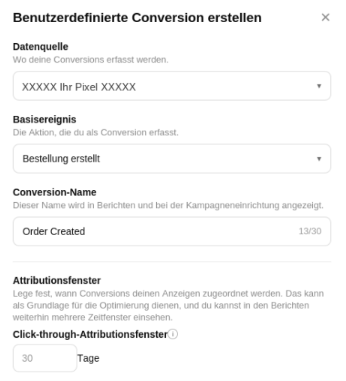
4. Fill in the four fields: Data Source (your pixel from Step 1), Base Event (see below), Conversion Name (free
text, max. 30 characters), and the click-through attribution window in days.
5. Click Create and repeat this for all five conversions.
Good to know
Attribution window: You set this here, not us in the tracking. 30 days is a good starting value for the purchase. For a plain
page view, fewer days are fine — otherwise it will still count as a conversion a month after the click.
Conversion Name: plain free text. It doesn't affect measurement, only the label in your reports.
Each action belongs to exactly one data source. If you run multiple shops in one ad account, create a separate
set for each shop.
Optimizing for conversions: When creating a campaign, you select exactly one of these actions as the goal. This choice
can't be changed later, and existing campaigns can't be switched afterward either. When in doubt, it's better to create a
new campaign.
If labels differ: OpenAI is currently changing the interface frequently. If an item is named differently than
described here, choose the one that matches in meaning and let us know.
The five conversions you'll create
We send five events along the purchase path. Create an action for each one, and you'll later be able to see exactly where
prospects drop off. Wherever XXXXX Your Pixel XXXXX appears in the screenshots, select your own data source from Step 1.
1. Page view - Base event: Page viewed
2. Product view - Base event: Content viewed
3. Added to cart - Base event: Item added
4. Checkout started - Base event: Checkout started
5. Purchase - Base event: Order created
Frequently Asked Questions
Purchase Event and Double Counting
Does Shoplytics send order_created exactly once per order?
Yes. The event is sent upon the first normalized paid order state. No second successful order_created is created for the same order, whether through a webhook retry, manual retry, re-capture, or any other processing on our end.
What happens if it is sent twice anyway?
Then deduplication takes effect at OpenAI. The matching key consists of the Pixel ID, Event Name, and Event ID. The first incoming event is used; subsequent duplicates with the same key are discarded. Double counting therefore only occurs if two transmissions carry different IDs.
Event IDs
Is events[].id a required field?
Yes. In the Conversions API, id is required for every event, regardless of event type and even for purely server-side tracking. An event without an id will be rejected, and since an invalid event causes the entire batch to fail, the rest will fail as well.
Must the same ID be used during a retry?
Yes, absolutely. Duplicate delivery with an identical ID is non-critical, as OpenAI discards the duplicate. A new ID during a retry, on the other hand, creates a second conversion. Our implementation therefore passes through the value once generated and does not re-derive it server-side.
Can we specify a custom ID format, for example shopify:<shop>:order:<order_gid>:order_created:v1?
No. We use our own internally generated Event IDs system-wide, which browser and server use synchronously. A custom format would break this synchronization.
Technically, this is also not necessary. OpenAI does not prescribe a specific format. The only requirement is that the Pixel event_id and Server id carry the same value. Whether this is an order number, a UUID, or an internal identifier does not matter for deduplication. The examples in the OpenAI documentation use order numbers like order_12345; this is a sample value, not a requirement.
How do we then match a reported conversion to a specific order?
Via our raw data. OpenAI does not have a field for an order number anyway. The contents data structure only has type, amount, currency, and contents[]; at the event level, there is neither a transaction_id nor an order_id. The only transaction reference in the payload is the Event ID. Therefore, mapping to the order and to the GA4 transaction_id happens on our side in every conceivable setup, not at OpenAI.
Data Minimization
Can the user object be omitted entirely?
Yes. All fields in events[].user are optional, as is the object itself. The event will still be accepted without it. Attribution will then rely solely on the click identifier.
Will this stay the same if Shoplytics introduces hashed user data later on?
Activation occurs only after explicit client approval. Without approval, the object remains excluded.
Can tracking be operated without a browser pixel, i.e., purely server-side?
Technically yes, but with limitations you need to be aware of.
The click identifier oppref arrives as a query parameter on the landing page. A server can generally read it from the URL and store it itself, so the pixel is not strictly required for this.
What is lost without a pixel:
__oppref and __obref are not set because the pixel writes them. Reusing the click identifier on subsequent pages must then be built entirely by yourself.
obref, the browser reference, does not exist at all. It originates exclusively from the pixel.
All browser-side events are omitted, i.e., everything prior to checkout completion.
Automatic Advanced Matching is omitted, as it is purely a pixel feature.
OpenAI consistently describes the combined setup of Pixel and Conversions API in its documentation and explicitly recommends it. A server-only setup is not ruled out by this, but it is not the documented standard approach, and attribution will be weaker.
Can Automatic Advanced Matching be disabled?
Yes, it is an account-level setting and not a requirement for measurement.
Keys and Handover
How is the Conversions API key passed?
Via a secure input field in the account or an encrypted one-time link. Not via plain text email.
How is it stored and processed?
API keys are stored exclusively in encrypted form. At most, only the encrypted value may be visible in the browser. Plain text keys and decryption keys never reach the browser or client-side code. Decryption happens exclusively server-side, immediately before the server-to-server call. Plain text logs and freely accessible configurations are not created in the process.
Why must the key never enter the frontend?
Because the Conversions API is strictly server-only. A key in the page source code could be read immediately. In the browser, the Pixel runs and only requires the Pixel ID, which is not a secret.
integration_source
Is a stable integration_source value sent?
Yes, shoplytics, at the top level of every request and identical for every batch. OpenAI provides this field for anyone sending events on behalf of advertisers. It is not a required field and has no impact on authentication or authorization.
Consent, Retention, Revocation
Is the consent status represented technically?
Yes. The pixel only knows on or off; there is no Consent Mode in the Google sense at OpenAI, so no cookieless pings and no modeling. If consent is missing, nothing is sent, and blocked events are not made up for later. Server-side sending is not a workaround, but merely a different transport method and follows the same status.
Is there a defined retention period and deletion upon request?
Yes, with an immediate send stop becoming effective upon revocation or deactivation.
Testing and Acceptance
Is there a validation run without storage?
Yes. The Conversions API supports validate_only: true. This checks credentials and schema without writing data.
Do you provide formal readbacks per Event ID with HTTP status, response body, and retry count?
Not in this form. Our acceptance process is different and serves the same purpose:
That is the cross-check that matters: not whether an event was accepted, but whether it appears as a conversion in Ads Manager.
Why can an accepted event still result in zero conversions?
Because accepted only confirms transport. For it to become a counted conversion, a conversion action in the account must additionally point to the matching event type, the event must be attributable to a campaign, and it must fall within the attribution window. If the conversion action is missing, the count stays at zero, even though everything was technically sent correctly.
Is this process proven?
Yes, ChatGPT tracking currently runs stably on over twenty shops. If issues arise, we resolve them.
Parallel Operation
Can two CAPI senders run simultaneously?
No, and this should not be attempted. Two senders typically generate different Event IDs for the same conversion because they generate them independently. Deduplication will not work in that case, leading to double-counted conversions. When switching, you switch over rather than running in parallel.
Where is the technical basis documented?
The complete documentation based on which the tracking is implemented can be found at shoplytics.de/gpt-tracking-doku.
Official OpenAI sources: