Jimdo
- Open your Jimdo admin interface
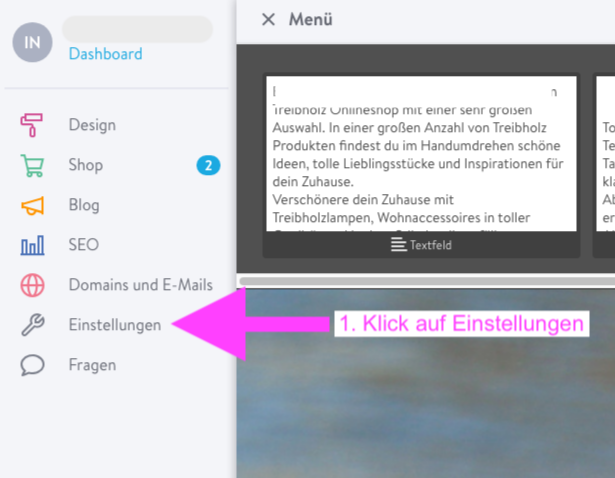
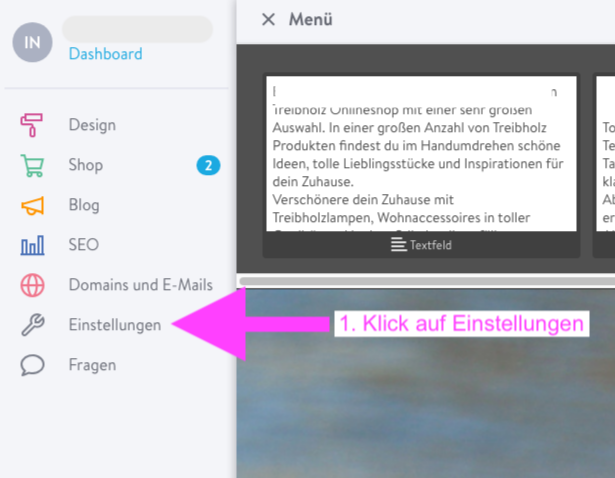
- Click on "Settings"
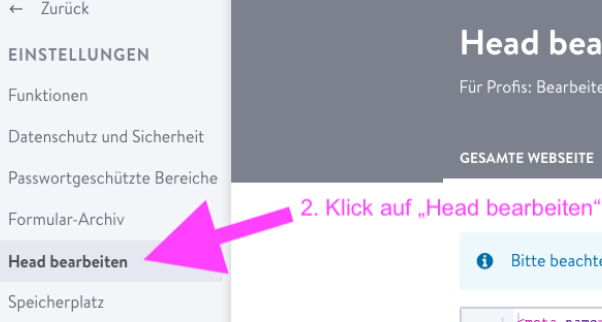
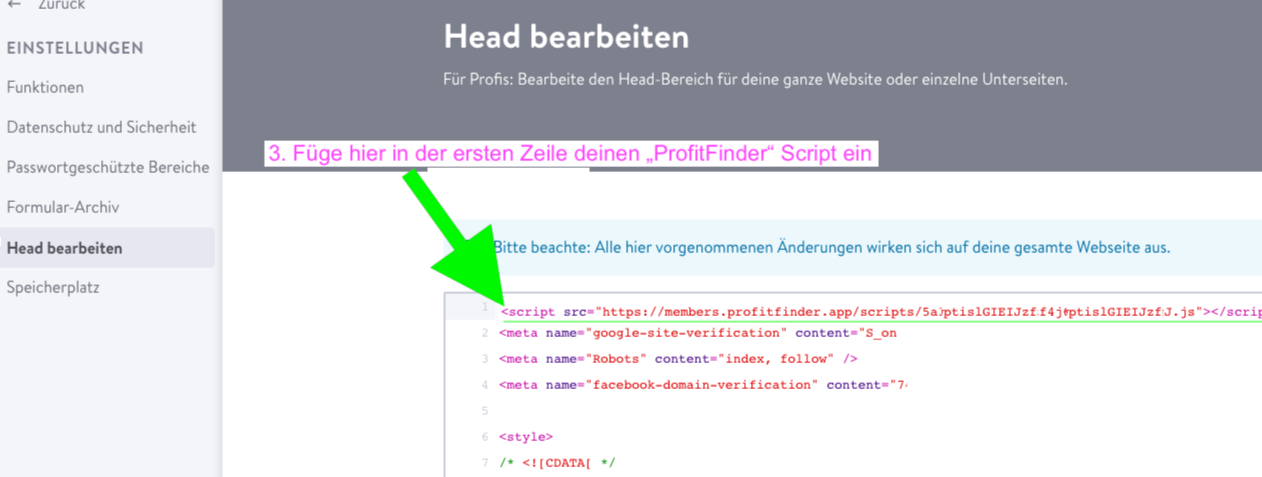
- Click on "Edit Head"
- If something is already present in this "Head area" text field, then as a precaution, first make a backup copy of what is already there 🙂. Copy everything that is already in the code area here into a separate text document (on your computer). If you make a typo, or the internet suddenly disappears, you will always have a backup copy.
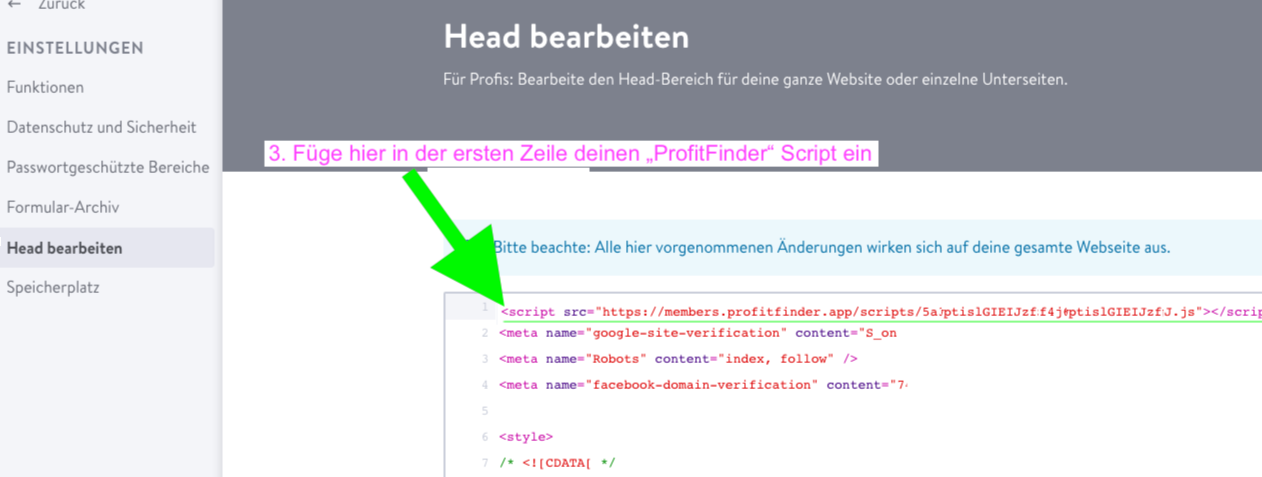
- Click with the mouse before the existing text in the head area on the first line (see screenshot below)
- Then simply paste the "Shoplytics Code" that you received via email into the first line of the HEAD area.
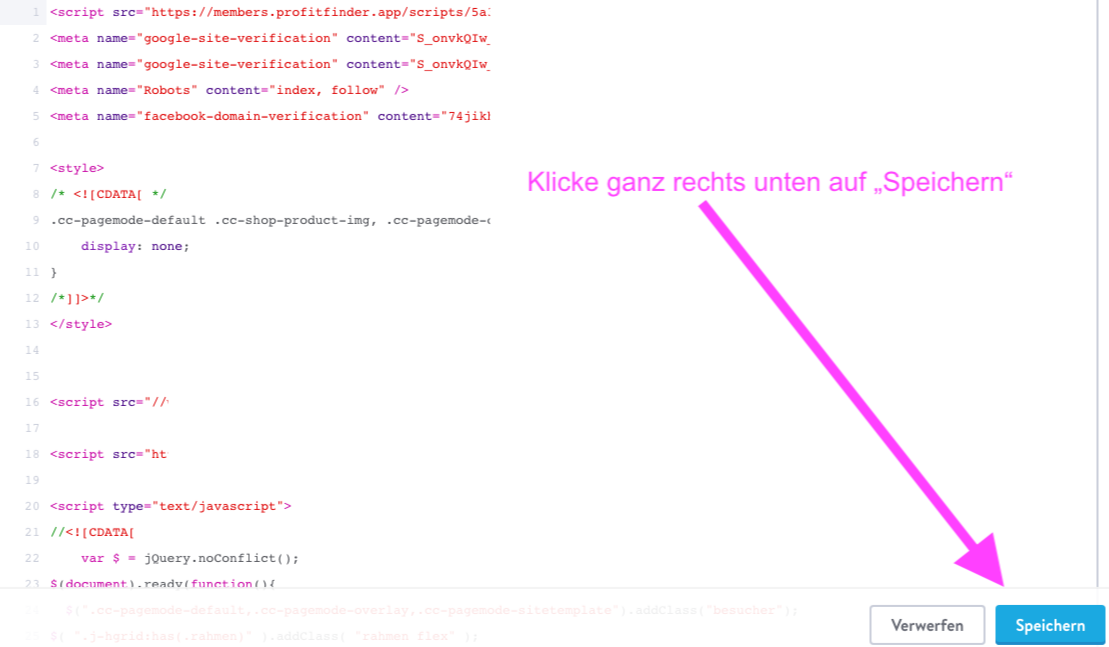
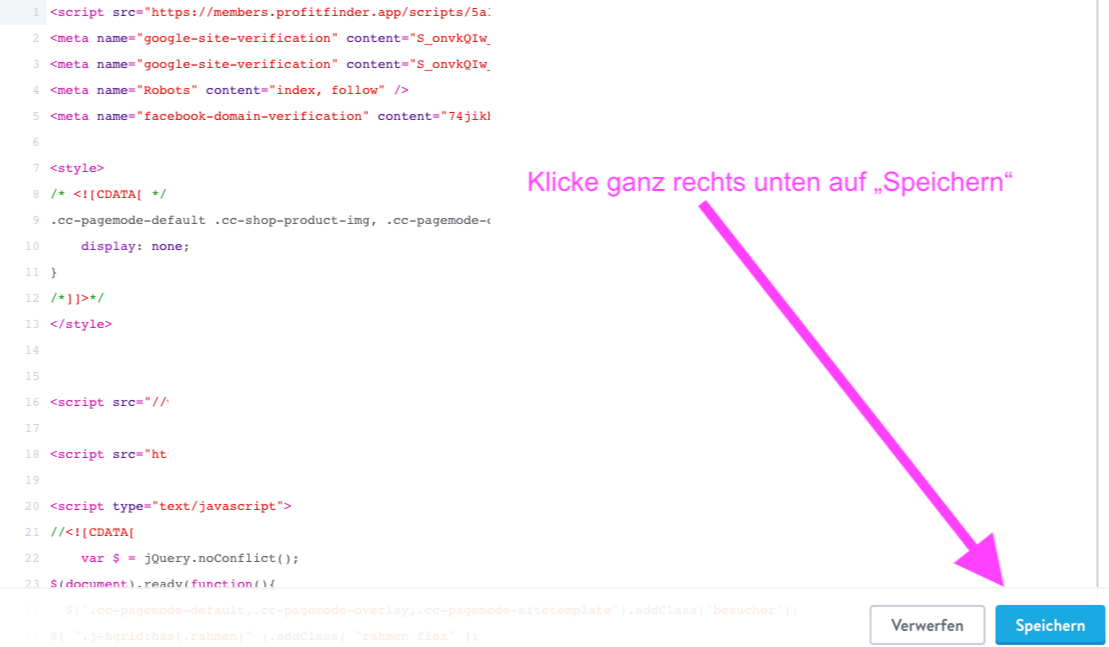
- Finally, click on "Save" at the bottom right

Check that everything is working:
If you want to make sure that everything is working, you can proceed as follows.
- Call up your shop URL with the following suffix at the end: ?check=1 Example: If your shop URL is: my-shop.com, then call up the following URL in the browser: my-shop.com?check=1
- You should then see a large yellow sign in the browser that says: "The Shoplytics script has been correctly embedded in the source code"
- If you do not see this sign, then please contact our technical team directly and we will help you further.
Bonus task:
Remove duplicate tracking scripts.
To avoid unnecessarily loading duplicate tracking scripts, proceed as follows:
Remove duplicate "Google Analytics" tracking
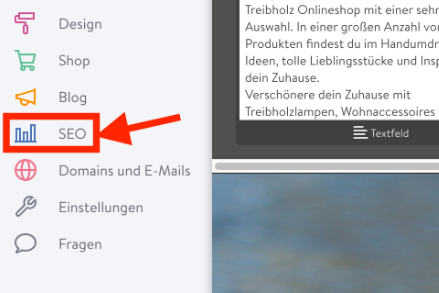
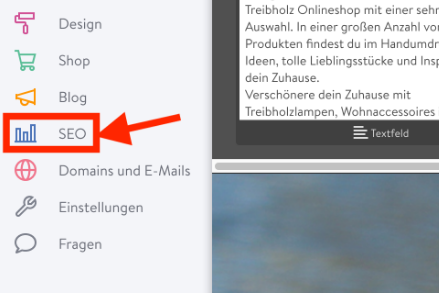
- Open the "SEO" section in your shop.
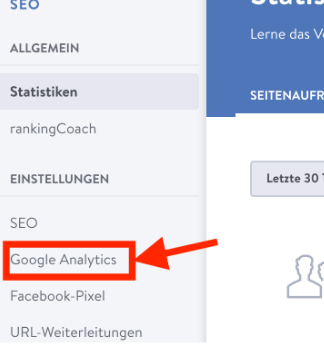
- Then click on "Google Analytics"
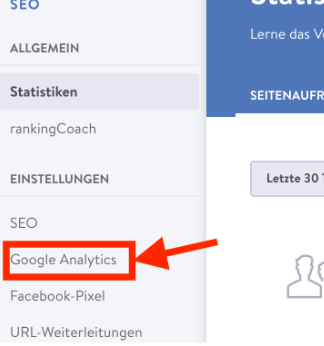
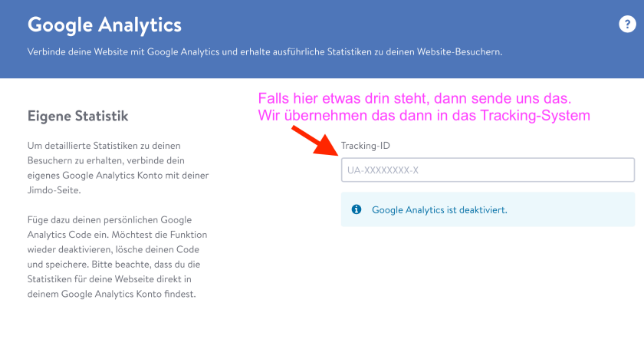
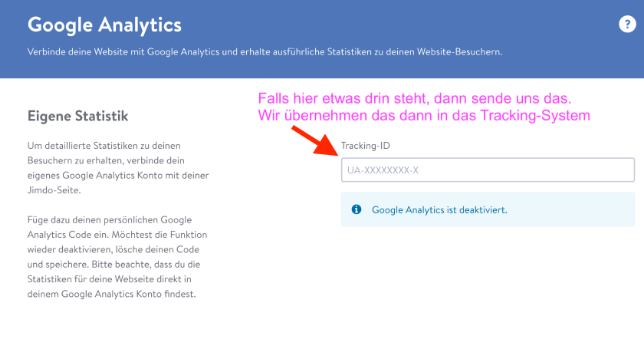
- If there is an account ID in there, then please send us an email with this ID, and we will also include it in the ProfitFinder. This saves loading time and additional code in your shop