
Shopware
Step 1 (of 1:)
Integrate the Shoplytics script (which you received from us via email) into the <head> section of the shop.
Preferably at the very top of the head section for best results. Please do not use "defer" or "async", as we manage the loading time of the tracking script proactively directly via Shoplytics. If you're not sure how to place the script in the head section (or don't have a developer who can do it), simply download the Shoplytics plugin for Shopware 5 or 6, which will then place the script in the perfect spot for you - without you having to click around in the source code.
If you cannot place the script directly in the source code (which is the preferred recommendation), you can install the Shoplytics plugin for your Shopware version... (only necessary if you cannot/do not want to manually insert the script into the head section of your shop)
Proceed as follows.
| Shopware 5 | Shopware 6 |
|---|---|
| To the plugin | To the plugin |
- The plugin must be added to Shopware via "Upload".
- Enter your tracking URL in the plugin settings (you received this via email.)
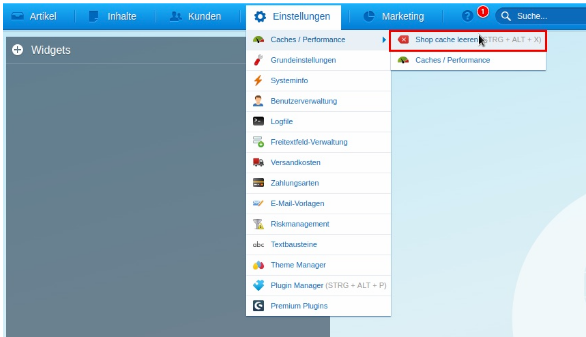
- Remember: "Clear Shopware cache" (only then will the changes be displayed to your visitors and data be collected), see screenshot below
If needed, you can now also activate Dynamic Retargeting in Shopware...
In dynamic retargeting, the user's actions are passed on to Google Ads.
This way, following the shop visit, the user sees the appropriate advertisements for exactly the product they were interested in in the shop.
The Google Ads algorithm distinguishes between product page views, opened shopping carts, and purchases.
To achieve this, the IDs of the products communicated to Google via the Google Shopping feed must exactly match the product IDs used in the tracking.
Unfortunately, this is not always the case. Especially when the Shopping feed "pulls" the product ID from a different field in the Shopware database than the tracking system in the browser.
To check whether the IDs in the Google Shopping feed exactly match the IDs in the browser, we have prepared a small tool for you.
You can find it here: https://lookerstudio.google.com/reporting/e4016efc-6684-46ff-8216-7853639163d1
If the IDs in the Shopping feed (left table) do not exactly match those in the right table (browser/tracking) (Attention: case sensitivity also counts), then you must adjust the Shopping feed export as follows:
Step 1: Check which DataLayer version is active in your shop.
To do so, please open a PRODUCT DETAIL page in your shop and add the parameter ?datalayer=1 to the URL.
→ A large yellow window will open. It shows the version of your Datalayer.
Step 2: Depending on the version of your Datalayer, you must adjust the Shopping feed so that the product ID (article ID) is pulled from the following field.
| Shopware 5 | Shopware 6 | |
|---|---|---|
| Datalayer "Universal" | articleID | productID |
| Datalayer "GA4" | Ordernumber | Number |