Woocommerce
- Install GTM (Google Tagmanager) plugin in WordPress: https://de.wordpress.org/plugins/duracelltomi-google-tag-manager/
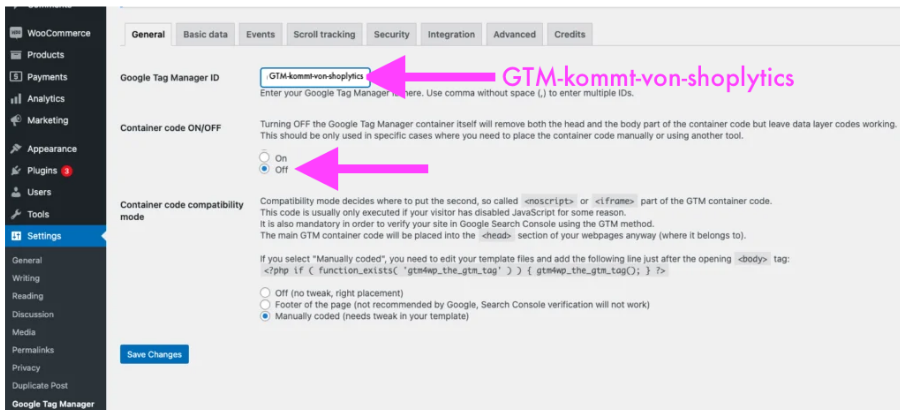
- Open the plugin settings, enter the Google Tag Manager ID GTM-KK8SCVP and set Container Mode to ON below.
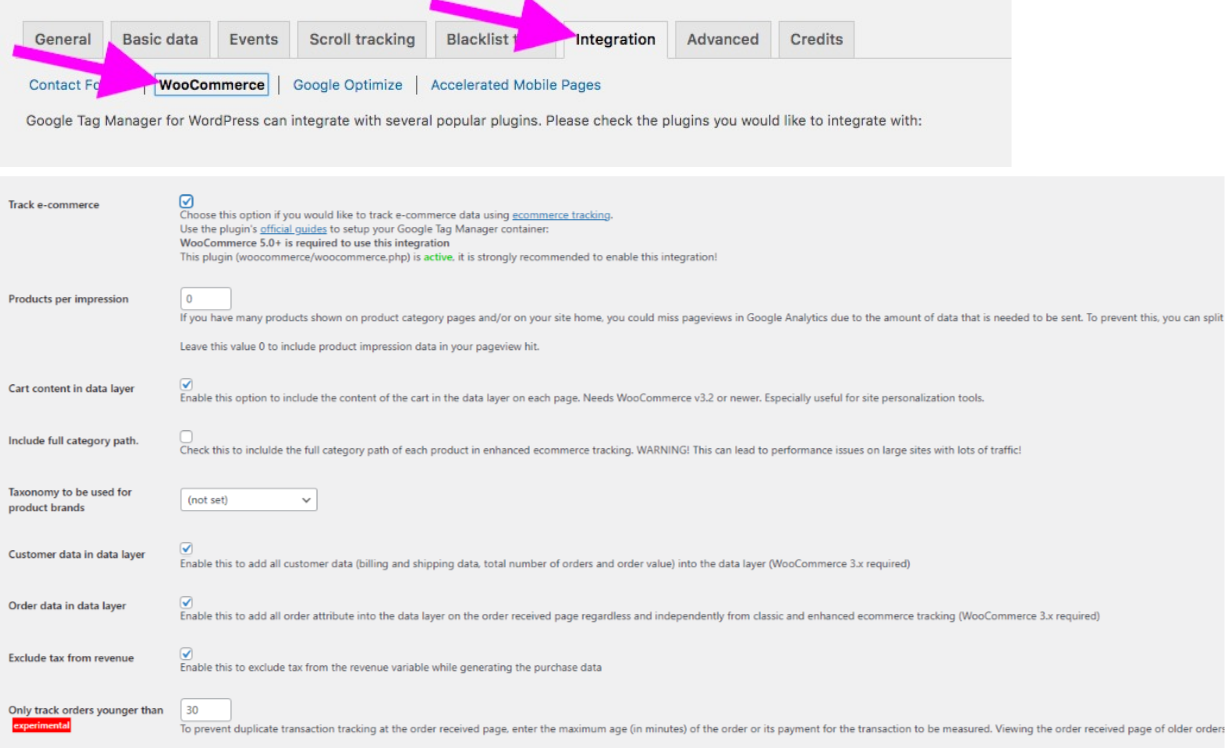
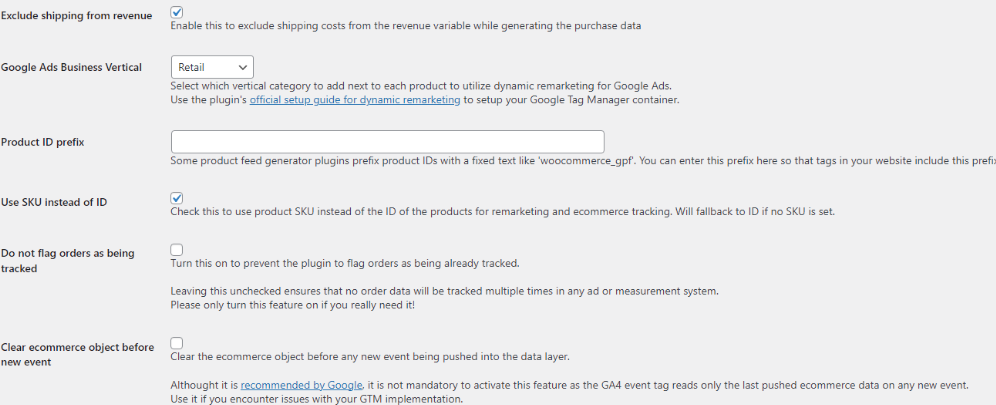
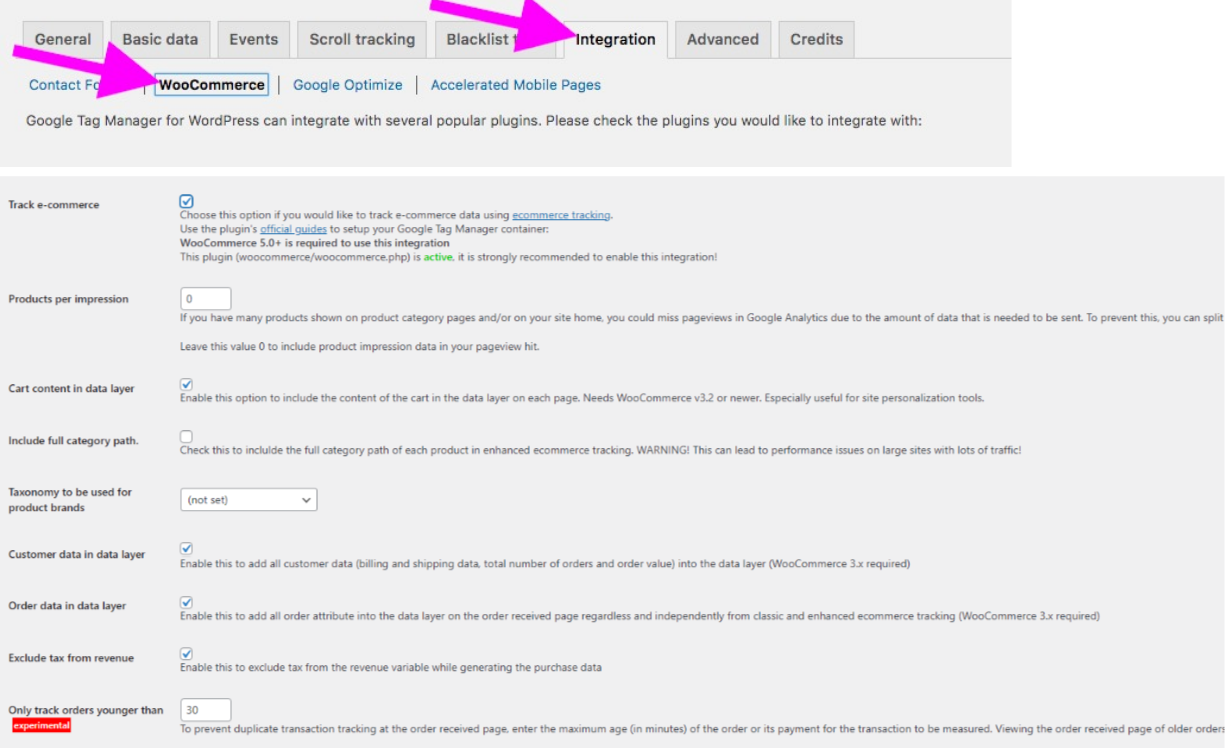
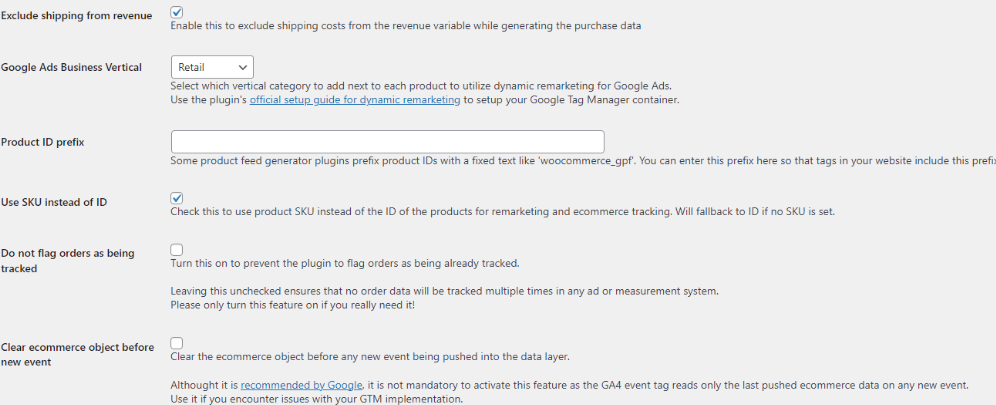
- Then configure everything as follows
- Embed the Shoplytics script
You will find the Shoplytics script in the last email you received from us. This must be embedded in the head section of the page.
For this we recommend the free WordPress plugin "Tracking Code Manager"
a. After you have installed the Tracking Code Manager, go to Settings → Tracking Code Manager in WordPress.
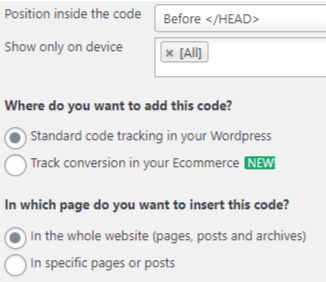
b. There, create a new tracking code, enter "Shoplytics" in the title and paste the Shoplytics script into the grey box. (Please paste it exactly as it appears in the email. Please do not click on the link contained in the script and insert the content. That would destroy your website. Please simply copy the script 1:1 from the email and insert it exactly as is.) c. Below the script, configure the settings as follows: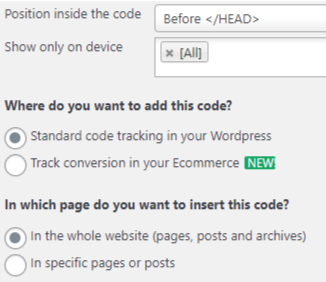
- Only if you use the "WP-Rocket" plugin
In order for the tracking code to load without errors in this case, you need to extend the Shoplytics script you received from us with the following code snippet. Insert the bold part at the same position in your script. Example code (only copy the bold part and add it to your script): <script src="https://app.shoplytics.de/0000000.js" data-cfasync="false"></script> If you have any problems with this, you can simply write to us stating that you use WP-Rocket, and we will adjust the script for you. - Only if you use the "Nitropack" plugin
Please click on the following link and make the adjustments so that tracking can work: https://docs.google.com/document/d/1JR5MYsiKijrR3z0Hzhk_ZZ_pbAmIKEmpVZ6HxqlEkvQ/ - Only if you use the "Borlabs Cookie" consent manager
In the Borlabs settings, an exception for https://tagmanager.google.com/ must be added in the "Script Blocker" tab, otherwise Shoplytics tracking will be blocked directly, even when cookies have been accepted. (If this is unclear, just send an email to Marco: technik@shoplytics.de) Through the exception in the script blocker, Shoplytics can be loaded immediately, and Shoplytics then checks whether tracking may be active or not. If the entire script blocker is disabled on your site, then no exception needs to be added.
Load time optimization
Shoplytics helps you optimize the load time of your shop.
Ideally, Shoplytics serves the "GTM" (Google Tagmanager code) itself instead of having GTM4WP deliver it.
→ If in the page-speed test: https://pagespeed.web.dev, the "GTM-KK8SCVP" is shown as render-blocking, proceed as follows:
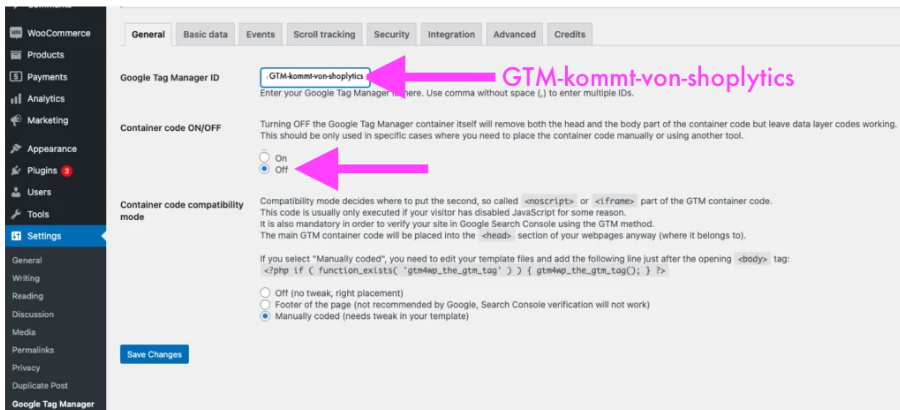
Change two settings in the GTM4WP plugin...
-
- Instead of the GTM ID, enter the following in the "Google Tag Manager ID" field: GTM-EMPTY
- Under "Container code ON/OFF" select the setting "OFF"
- Change the setting in app.shoplytics.de/einstellungen In order for Shoplytics to deliver the Google Tagmanager in a load-time-optimized way, you must set the "Shop system" in Shoplytics to "Self-programmed". This way, Shoplytics knows that the GTM is not provided by the plugin, but that Shoplytics has to provide it.
- Instead of the GTM ID, enter the following in the "Google Tag Manager ID" field: GTM-EMPTY